
Why the order screenshot reader rejects an image, and how to fix it
The screenshot reader on the new order page only accepts JPEG, PNG and WebP images under a size limit. Here is what each error means and what to do.
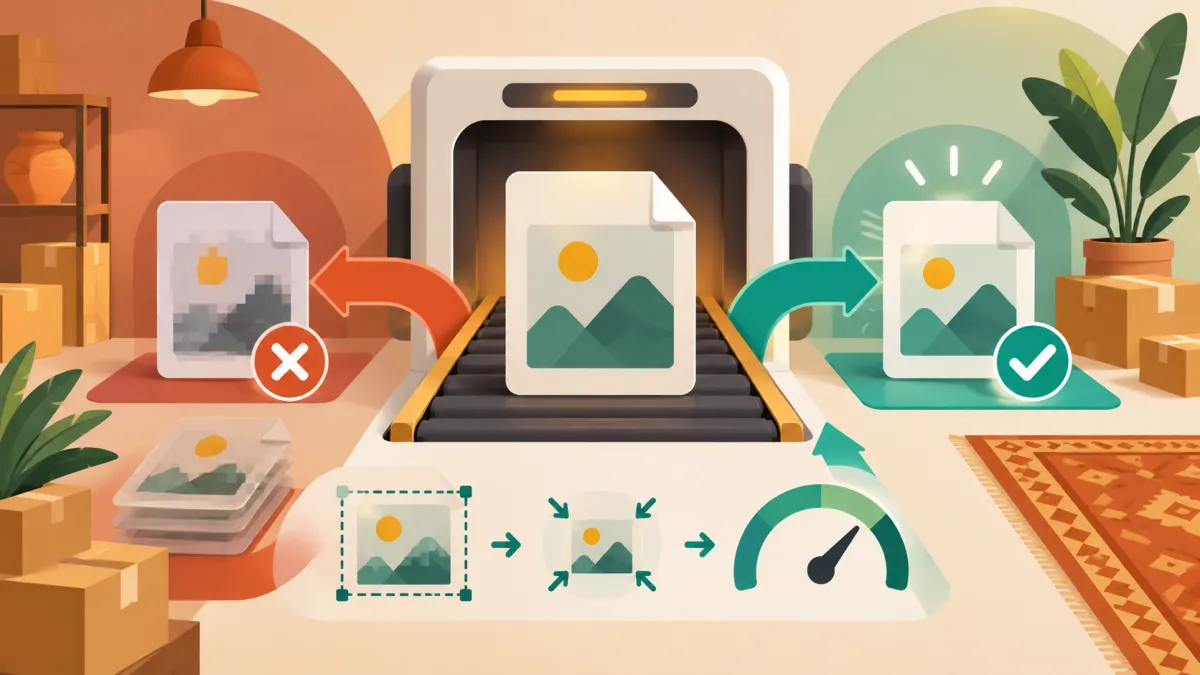
You upload a screenshot to the new order page, wait a moment, and get an error instead of a filled form. The messages are short, but each one points to a specific cause. Once you know the three or four reasons an image is refused, the fix is usually a few seconds of work.
Only images, and only three formats
The reader accepts JPEG, PNG and WebP. If the file is something else, such as a PDF, a video, a GIF or a document, you will see a message saying the image could not be read and that only those three formats are supported. On the page itself, choosing a file that is not an image gives an earlier warning asking you to select an image file.
The most common source of this problem is a screenshot saved in a format your phone or computer did not label the usual way. Take a fresh screenshot with the normal phone shortcut, which produces a PNG or JPEG, and upload that instead.
The size limit
Large images are refused with a message that the image is too large and a smaller screenshot should be sent. There is a fixed maximum on the size of the image data the server will accept, a little over five megabytes.
In practice you rarely hit it with a phone screenshot, because the page shrinks the picture in your browser before sending it: anything wider or taller than 1600 pixels is scaled down and saved as a compressed JPEG. If you still see the message, you probably uploaded a very detailed image, such as a stitched long screenshot. Crop it to the messages that matter, or take two shorter screenshots and read them one at a time.
When the message says it could not read the image
Sometimes the file is fine but the reading fails. The page then says it could not read that and suggests trying again or filling the form by hand. This is a temporary failure, or a sign the image had nothing readable in it. Try once more. If it fails again, switch to pasting the chat as text, which is often more reliable and has no image limit at all. Pasting a customer's chat to fill the address and items shows how.
Tips that make readings better
- Crop to the order conversation. Remove menus, notifications and unrelated chats.
- Keep the text large. A zoomed in screenshot beats a tiny full-screen one.
- Make sure the address and the items are both visible, even if you need two uploads.
- Avoid screenshots of screenshots, which blur the text.
Video and other files
Only still images are supported. If a customer sends a voice note or a video describing the order, you will need to type the order yourself, or write the details out in a text message and paste that.
The form is always the fallback
Nothing about the reader is required. If the upload keeps failing, scroll down and enter the items and address by hand. The order you create is identical either way. For the step by step on that form, read how to create an order for a customer who bought on WhatsApp. For the normal, working path with a screenshot, see fill an order from a WhatsApp screenshot instead of typing it.
If the whole card is missing rather than failing, that is a different situation, covered in troubleshooting when order reading is switched off.