
How to create an order for a customer who bought on WhatsApp
Enter a WhatsApp, Instagram or phone order in your Varchas admin so it gets an order number, a stock deduction and a link you can send back.
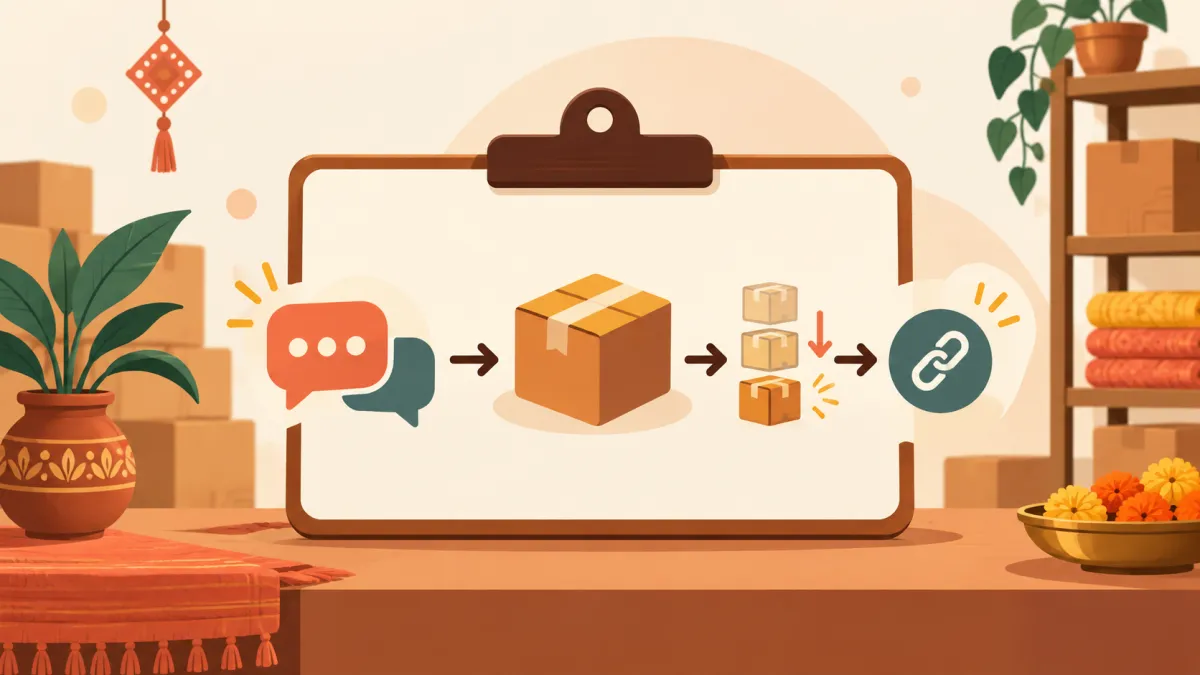
A lot of small brands still close sales in a chat. The customer messages, you agree on the product and the price, and then the order lives in your phone. The trouble starts a week later, when you cannot remember who ordered what, whether the stock was reduced, or whether the parcel went out. Creating the order in your admin fixes all of that, and it takes a couple of minutes once you know where the fields are.
Where manual orders live
In your Varchas admin, open the Orders section and choose the option to create a new order. The page is built for exactly this situation: an order that arrived somewhere other than your store, such as a WhatsApp chat, an Instagram DM or a phone call. It is not a separate system. The order you create uses the same pricing, the same stock deduction and the same order record as an order placed at checkout, so it shows up in your normal order list and in your exports.
Fill in the items
The form starts with one item row. For each row you choose a product from your live catalogue, then a colour if the product has colourways, a size and a quantity. The price comes from the product, so you are not typing amounts by hand and you cannot accidentally sell something at the wrong price. Use the add another item button for each extra product in the same chat. The running total updates as you go.
If a product has a minimum quantity or lot pricing, the form applies those rules too, and it shows a message under the items if a row cannot be ordered as entered.
Add the customer and address
Next come the customer details: full name, a ten digit mobile number, and the delivery address with street, optional area and landmark, city, state and a six digit pincode. Email is optional. If you add one, the customer receives the order confirmation with the order link. If you leave it empty, nothing is emailed, and you simply share the link yourself in the chat.
The state is chosen from a list rather than typed. That is deliberate: couriers reject a shipment when they do not recognise the state name, and a list removes the typo risk before it becomes a failed booking.
Choose the source and the payment
Two dropdowns record how the order arrived and how it will be paid. The source options are WhatsApp, Instagram, Phone and Other, and the payment options are Cash, UPI (direct), Bank transfer and Cash on Delivery. These money methods are recorded by you. The order does not go through the online payment gateway, so Varchas cannot confirm the payment for you.
If the customer has already paid, tick the already paid box. If you choose Cash on Delivery, that box disappears, because a COD order is unpaid until the parcel reaches the door.
After you press create
When you save, you are taken to the new order's page. From there you can copy the customer link and paste it into the same chat, so the customer can see their order without asking you for updates. You can also book a courier or record a self-shipped parcel from the same page, the same way you would for any order. For a closer look at the link, read sharing an order link with customers.
A few practical habits
Create the order while the chat is still open, not at the end of the day. Pick the right source every time, so your order list tells you honestly where your sales come from. And if the chat is long, you do not have to type everything yourself: the page can read a pasted chat or a screenshot to fill the form, which you can learn about in generating an order from a chat screenshot.
Manual orders are the bridge between how Indian customers actually buy and how a store should actually run. If you are still deciding whether chat orders belong in a store at all, WhatsApp orders are great until they are not covers that side of the story.