
Fill an order from a WhatsApp screenshot instead of typing it
The new order page can read a chat screenshot or pasted text and pre-fill the form. Here is how to use it and what you still need to check.
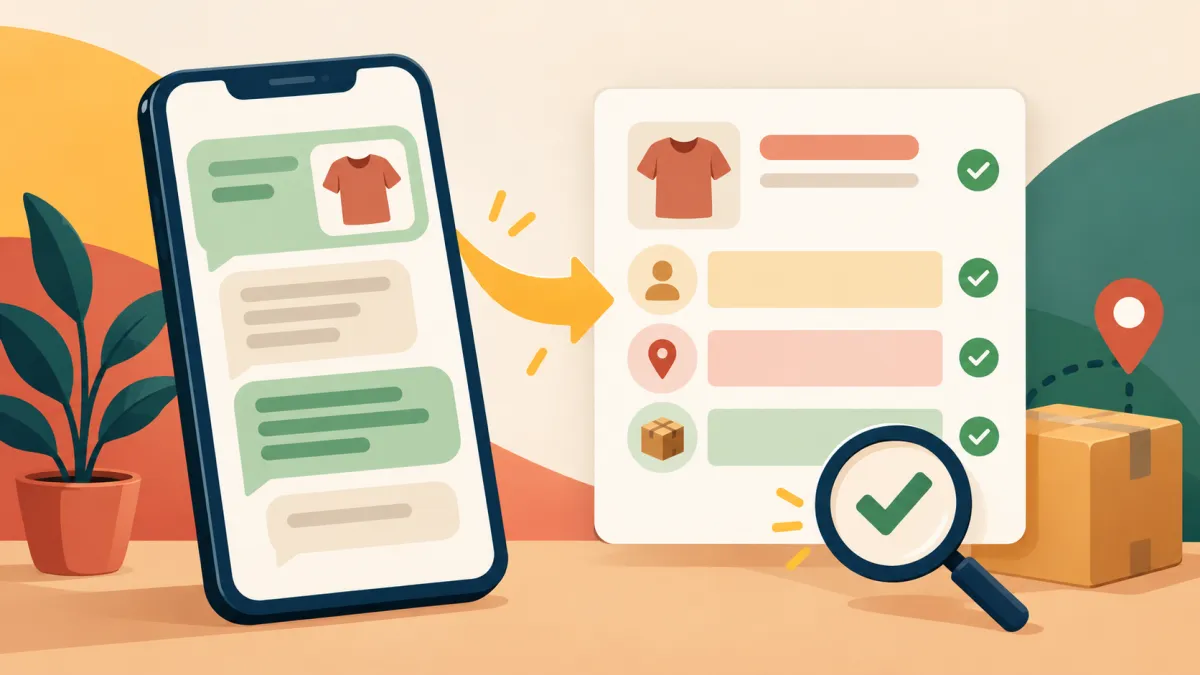
Typing a customer's name, phone number, address and items from a WhatsApp chat into a form is slow, and it is where mistakes creep in. On stores where order reading is switched on, the new order page can do the first pass for you. It reads a screenshot or the text of a chat and fills in the form, and you check it before saving.
Where to find it
At the top of the new order page there is a card called fill from WhatsApp. It offers two ways in. You can upload a screenshot with the upload screenshot button, or you can paste the chat text into the box and press read chat. You can also paste an image straight from your clipboard while the page is open, and it is picked up automatically.
If you do not see this card, order reading is not switched on for your store. Why the order reading option can be switched off explains that case.
What it fills in
After a few seconds the form updates. The item rows are matched against your live products and their colourways, and the customer section is filled with whatever it could find: name, phone, email, street address, area, landmark, city, state and pincode. Anything it was unsure about is listed as a short note under the card, so you know which parts deserve a second look.
It only matches against products that are live in your catalogue. If a customer asks for something you do not sell, or something named differently from your product, expect that row to be left empty or flagged rather than invented.
Always read the result before you create the order
This is a reading aid, not an accountant. Handwriting-style abbreviations, mixed languages, a forwarded message with several addresses, or a customer who changes their mind halfway through a chat can all lead to a wrong guess. The form stays fully editable, so treat the fill as a draft:
- Check the phone number has ten digits and belongs to the buyer, not to someone mentioned in passing.
- Check the pincode and state match the city.
- Check each item, colour, size and quantity against the chat.
- Choose the source and payment method yourself. Those are not read from the chat.
When everything looks right, create the order as usual.
Screenshot tips that help
Crop to the relevant messages if you can, and keep the text large enough to read. The image is resized in your browser before it is sent, so a normal phone screenshot is fine. The accepted formats are JPEG, PNG and WebP, and very large images are rejected with a message asking for a smaller one. Why the screenshot reader rejects images covers the size and format rules.
If a screenshot does not work, the pasted text route is often more reliable. Copy the messages from WhatsApp, paste them into the box, and press read chat. The text box accepts a single message or a whole conversation, up to a generous but fixed length, so paste only the messages about the order.
What happens to the data
The form fills, you review, and nothing is saved until you press create. If the reading fails, the page says so and invites you to try again or fill the form by hand. Nothing is lost either way, because the form is the same one you would have typed into.
For the full walk through of the form itself, read how to create an order for a customer who bought on WhatsApp. To understand why chat orders deserve proper records in the first place, see why selling in Instagram DMs stops working.