
Best phone camera settings for product photos
A handful of simple camera habits, not menus: focus, exposure, grid, and why to avoid digital zoom.
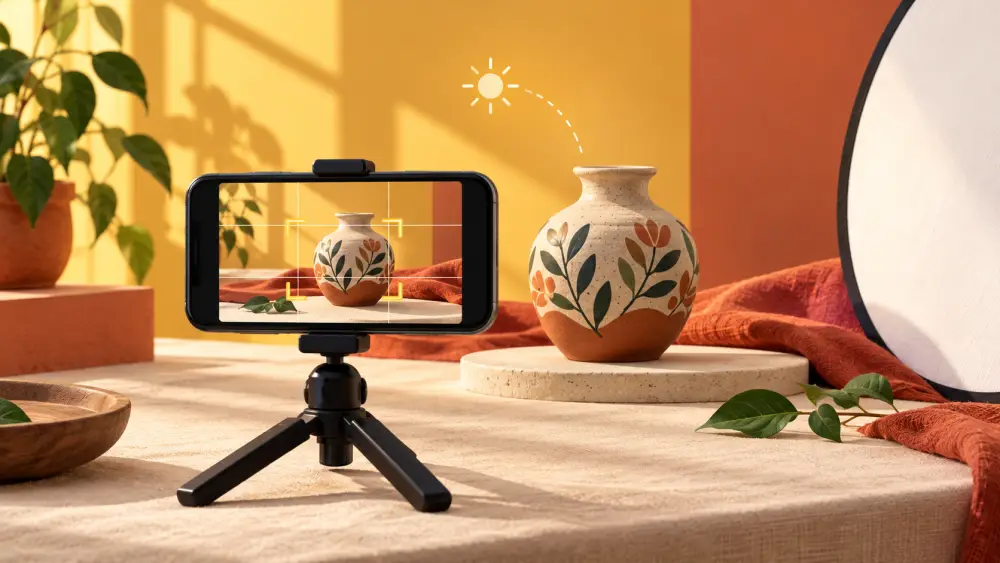
You do not need a professional mode to take good product photos. A few habits in the standard camera app make most of the difference. Camera apps vary between phones, so look for the equivalent of each setting rather than a particular menu.
Tap to focus, every time
Phones guess what you want sharp, and they often guess wrong. Tap the product on screen before every shot. A small box or circle appears showing where focus is set. For close-ups, tap on the most detailed part, such as an embroidered edge or the label.
Lock exposure when you can
After tapping, many phones let you slide a brightness control up or down, and some let you press and hold to lock focus and exposure. Use this when you are shooting a series, so the first and tenth photos look equally bright. Without it, the phone may brighten or darken as your hand or a shadow moves into frame.
Turn on the grid
The grid overlays lines on the screen. Use them to keep the product centred and straight, and to keep horizontal edges level. Straight photos look more professional than any filter.
Avoid digital zoom
Pinching to zoom usually crops the image and reduces its quality. Instead, move the phone closer or step back and crop later. If your phone has a separate close-up lens option, you can try it, but check the result at full size before committing.
Clean the lens
This costs nothing and makes a visible difference. Oily fingerprints cause a soft glow around bright areas.
Keep the flash off
Direct flash flattens the product and causes harsh reflections. Use window light instead. See whether to use the phone flash.
Resolution and format
Leave the camera at its standard high-quality setting rather than a reduced one. You can always shrink an image later but you cannot add detail back. Your store will handle display sizing, but start with a clear original.
Use the timer
Set a two or three second timer so your finger press does not shake the phone. This works especially well when the phone is leaning on something. See photos without a tripod.
Shoot the same way each time
Consistency matters more than any single setting. Keep the same distance, angle and brightness for each product type, so your catalogue looks like a set. The full routine is in taking product photos with only a phone and a window.
Check before you move on
After each shot, zoom into the preview on the screen. Is the edge sharp? Is the colour close to the real thing? If not, retake immediately while the setup is still in place. A retake takes seconds, while re-staging a product another day costs the whole setup again.