
How do I add my own product types for the shop filter?
The Catalogue tab in Settings is where you add, rename and delete product types. Here is how each action works and why delete sometimes greys out.
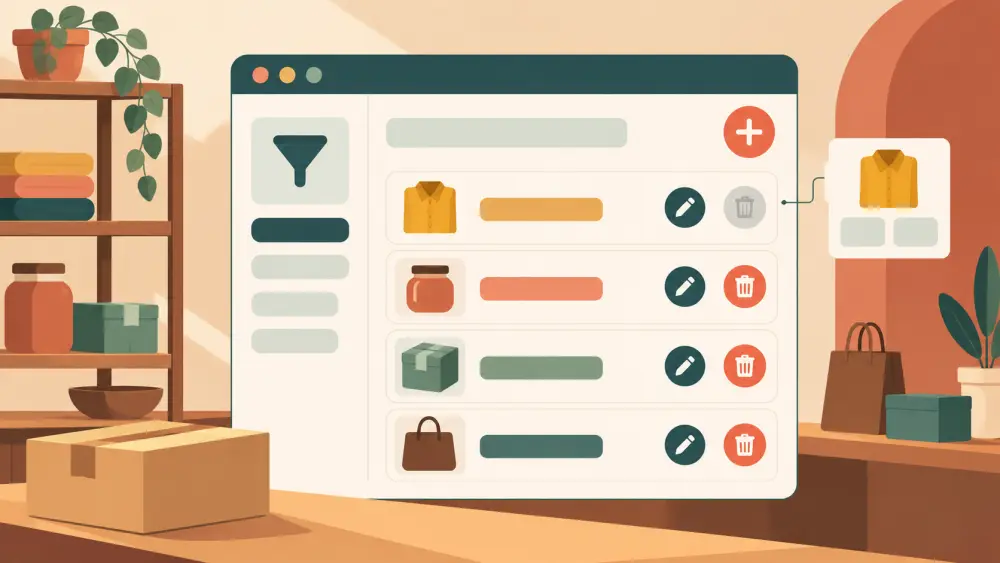
Every product in your store has a Type, and shoppers can filter the shop page by it. If the choices in the Type dropdown do not match what you sell, you can change them yourself. The place is Admin, then Settings, then the Catalogue tab, which shows a panel called Product Types.
What the panel is for
The panel describes itself: it fills the Type dropdown on products and the type filter on your shop. So the list you build here appears in two places, the dropdown when you add or edit a product in the admin, and the filter your shoppers use to browse.
This is about product types only. There is no separate second level of categories in this panel. If you also want to group products into collections for your homepage or campaigns, that is a different idea, covered in organising products into collections and categories.
The list
The panel shows a table with three columns: the type, how many products use it, and two buttons per row, Rename and Delete.
Adding a type
At the bottom there is a box with the placeholder "e.g. SWEATSHIRTS" and an Add Type button. Type a name and press the button. A few details to know:
- Names are turned into capital letters, so "joggers" and "JOGGERS" cannot become two filters.
- Extra spaces between words are tidied.
- Names use letters, numbers and the characters & ' / and - only. Anything else is refused with a message saying so.
- If a type with that name already exists, you are told so and nothing is added.
Adding saves immediately. You do not need the Save Settings button on this tab.
Renaming
Press Rename on a row and the name becomes an editable box with a Save button. When you save a new name, every product that used the old name is moved to the new one in the same step. So renaming TEES to T-SHIRTS does not leave orphaned products behind. If the new name is already in your list, the rename is refused.
Deleting, and why it is sometimes greyed out
The Delete button is disabled while any product uses that type. Hovering shows "In use by products", and a note under the table says types with products cannot be deleted. To remove a type, first move those products to another type, or delete the products, then come back. This prevents products from ending up with a type that no longer exists.
Choosing a sensible list
A few thoughts on keeping it useful:
- Use names a shopper would recognise, such as KURTAS, not internal codes.
- Keep the list short. Ten clear types are easier to browse than thirty overlapping ones.
- Think of the filter as a menu in a shop: what would a customer ask for at the counter?
If you are planning the whole catalogue, how to plan your catalogue before uploading is a good place to decide types first. And once you are adding items, catalogue spreadsheet columns every seller needs shows how type fits among the other fields.