
Can I see how shoppers move around my store?
The optional Microsoft Clarity field on the Analytics and alerts tab connects your own Clarity project. Here is what you enter and where the viewing happens.
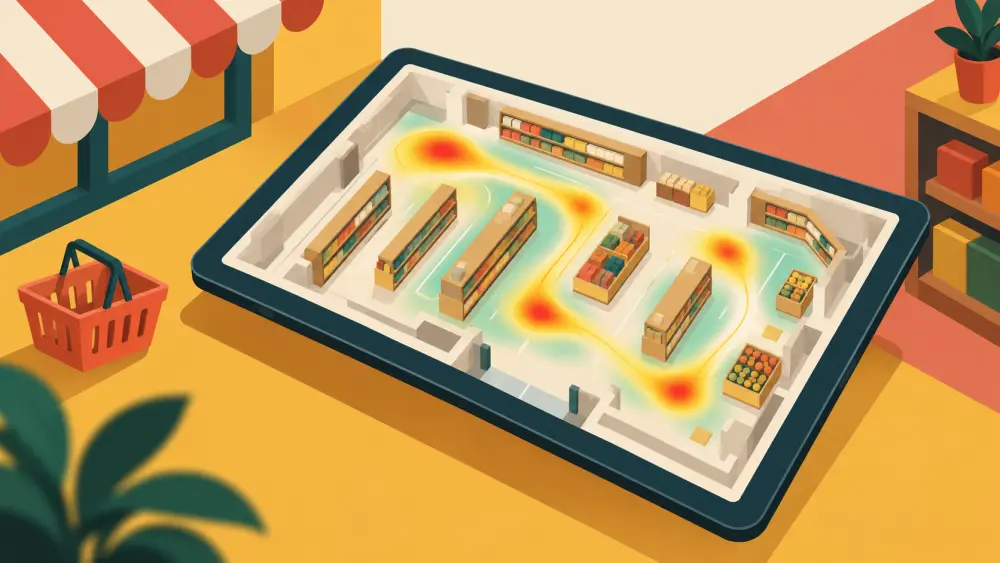
Orders tell you what people bought. They do not tell you what people looked at, hesitated over or gave up on. If you want a window into that, your Varchas settings include an optional field for Microsoft Clarity.
The field
In Admin, go to Settings, then the Analytics and alerts tab. The third row of the card is Microsoft Clarity, with the hint "Project ID, optional, your own Clarity project for this store". Paste your Clarity Project ID and press Save Settings.
You get a Project ID by creating a free account and a project at Clarity's own site, adding your store's web address as the site, and copying the short ID it shows you. The ID is made of letters and numbers only. The admin refuses anything else with a message saying so, so remove spaces, dashes and any code snippet you may have pasted along with it.
It is optional
Leave it empty and nothing breaks. The pill on the right says Not connected, which is just a plain grey status, not an error. Once the box holds a value, the pill turns green and says Connected. As with the other rows, this pill reflects whether a value is saved. It does not check with Clarity that the ID is real.
Where you actually watch shoppers
The Varchas admin does not show you sessions, recordings or heatmaps. Everything Clarity displays is inside Clarity's own dashboard, which you open with the account you created there. This setting only tells your store which Clarity project to send data to. If you want to understand what Clarity can show, its own help pages are the right source, and they are more up to date than any summary here.
Whose project is it
It is your own project, for your own store, under your own login. You decide who in your team gets access to it. Treat what you see as information about your customers' behaviour, and use it to improve the store rather than to single out individuals.
When it is worth doing
A few situations where watching real browsing helps a small store:
- People add products to the bag but rarely order, and you cannot see why.
- You redesigned your homepage and want to know whether visitors find the shop link.
- You suspect your product pages are too long on a phone.
Waiting until you have a reasonable number of visits is sensible. A handful of sessions is a few anecdotes, not a pattern. If you are not getting traffic yet, your time is better spent on building trust without a big marketing budget and getting people to the store in the first place.
How it fits with the other fields
The Analytics and alerts card puts three measurement tools next to each other, and they answer different questions. Google Analytics is about counts and sources. The Meta Pixel is about your Instagram and Facebook ads. Clarity is about the experience of individual visits. You do not need all three, and you can add them one at a time as questions come up.
A word of caution
More tools can mean a slower page and more to explain to visitors. Add what you will actually look at. If you never open the dashboard, the field is better left empty.