
Where do I add my Meta Pixel ID for Instagram ads?
The Meta Pixel row on the Analytics and alerts tab takes one numeric ID. Here is where to find it, how the form checks it and what it does not promise.

If you plan to run ads on Instagram or Facebook, Meta will ask you to install a Pixel on your website. On a Varchas store you do not edit any code for that. You paste one number into your settings.
Where to put it
Go to Admin, then Settings, then the Analytics and alerts tab. In the card called Analytics and Order Alerts, the second row is labelled Meta Pixel, with the hint "the numeric Pixel ID". Type or paste your Pixel ID there and press Save Settings.

What the ID looks like
A Pixel ID is a number, with nothing else in it. You get it from your Meta account, in the events or data sources area, where the Pixel is listed with its ID. Menu names change from time to time, so look for the word Pixel rather than following a fixed route.
The form is strict about the format. If the box contains anything other than digits, such as spaces, letters or a pasted line of code, the save is refused with a message that the ID is a number with no other characters. If that happens, remove everything except the digits.
The Connected pill
To the right of the field, a small pill reads Connected in green once the field holds a value, and Not connected in grey when it is empty. This pill reflects only what is saved in the box. It does not contact Meta, and it cannot tell you whether your ID is correct. A wrong number would still show as Connected.
Checking that it works
Meta has a free browser helper for this, commonly called the Pixel Helper, and its Events Manager also shows test activity. Open your store, browse a couple of pages and see whether Meta registers a visit from your site. If nothing shows, recheck the ID digit by digit against Meta's page, then save again.
What you should not assume
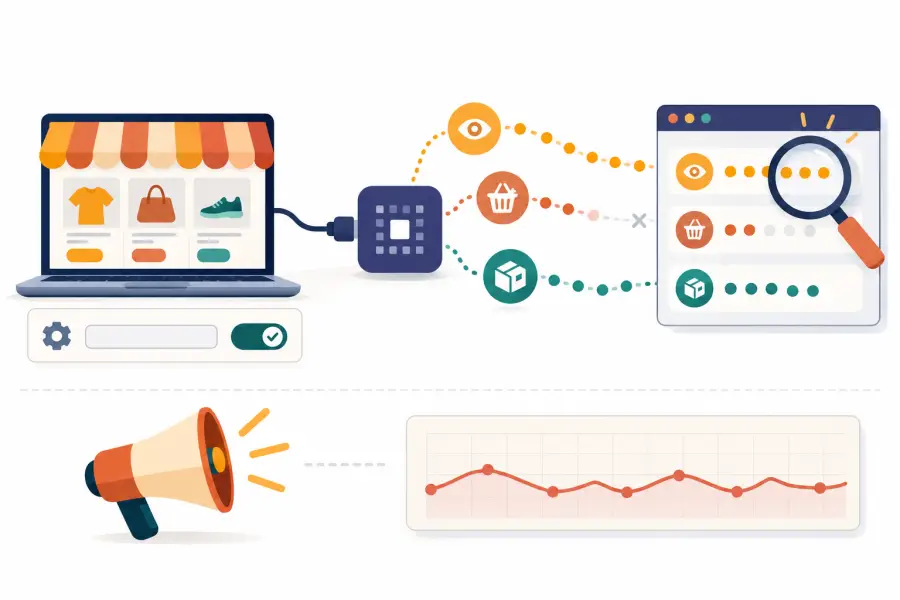
Saving the ID connects your store to your own Pixel, and that is all this setting does. Which specific actions get reported to Meta, such as page views, add to cart or purchases, is not something this settings screen controls or describes, and you should check in Meta's own tools what arrives rather than assume a full set of events. In the same way, having a Pixel does not make ads perform. Creative, audience and budget decide that, and none of it is promised by a number in a settings field.
A sensible order of work
If you are new to ads, it helps to get the foundations right before spending anything:
- Make sure your store links cleanly from your bio. From Instagram bio to your first order covers that path.
- Add the Pixel ID here and confirm Meta can see your site.
- Add Google Analytics too, so you can see store behaviour on your own side, as described in connecting Google Analytics.
- Start with a small test budget and watch what actually happens.
One last point on privacy
A Pixel collects information about visitors, and the rules around that depend on where your customers live and what you disclose to them. Your store has its own privacy wording; if you are unsure what you need to tell shoppers, ask a professional rather than guessing.