
How to record a UPI or cash payment on a manual order
When a customer pays you directly by UPI, cash or bank transfer, the already paid box records it. Here is how it works and why COD behaves differently.
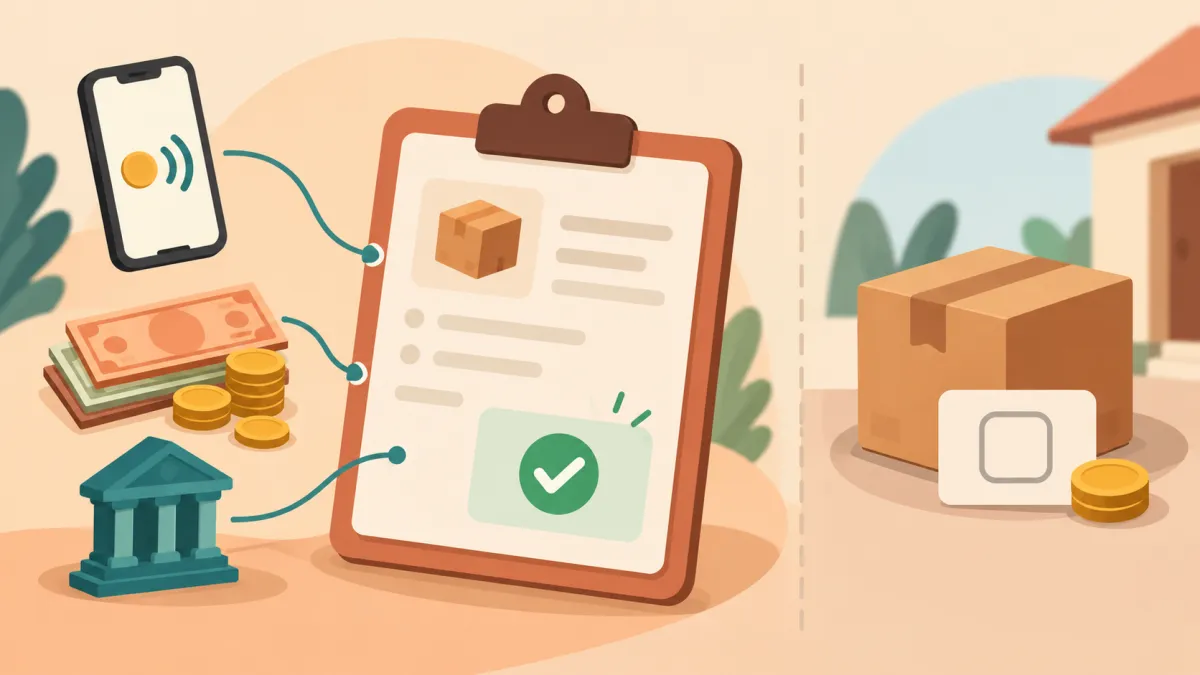
When a customer pays you straight into your own UPI app or hands you cash, the money never touches your store's online payment gateway. That is perfectly normal for chat orders, but it raises a fair question: how does your admin know the order is paid? The answer is that you tell it, once, when you create the order.
The payment method and the paid box
On the new order page, the payment section has a dropdown with four methods: Cash, UPI (direct), Bank transfer and Cash on Delivery. Pick the one that matches what the customer actually did or will do. Beside it is a box labelled already paid.
Tick it when you have the money or proof of it, for example a UPI screenshot sitting in the chat or cash in your hand. The order is then saved with a paid payment status. Leave it unticked and the order is saved as pending, which is the honest state until the money arrives.
Why Cash on Delivery has no paid box
If you choose Cash on Delivery, the already paid box disappears. A COD order is unpaid until the courier collects the cash at the door, so offering a paid tick would invite a contradiction. The server enforces the same rule: even if a form somehow submitted a paid flag for a COD order, the order would still be saved as pending.
If you want to understand how COD is tracked from checkout through delivery, Cash on Delivery without the chaos walks through it.
What the record does and does not do
Recording a payment is bookkeeping. Varchas stores that you received it, and shows it on the order, in your order list and in your export. It does not verify a UPI transaction, match it to a bank statement or contact your bank. Treat the tick as your confirmation. Check the screenshot, check your own UPI app for the credit, then tick the box.
This also means a direct payment will not appear in your online payout reports, because those are built from payments that went through the gateway.
If you ticked it too early, or too late
Payment status is not locked. Open the order and use the status form: it has an order status dropdown and a payment dropdown with the values Pending, Partial, Paid, Refunded and Failed. Change the payment value and press update. This is the right fix when a customer promised to pay and you created the order as pending, then the money arrived the next morning. Updating manual order payment statuses covers that flow in more detail.
A short checklist before you tick the box
Look at the amount, not just the screenshot. Confirm it matches the order total shown on the form. Confirm the credit in your own app, because screenshots can be edited. Make sure the source on the order, such as WhatsApp or Instagram, is correct, so that your records say where the sale came from. And if the customer paid part now and the rest later, create the order as pending and update the payment value once everything is in, rather than ticking paid and forgetting the balance.
Why this matters later
Clean payment records make everything downstream easier. When you export orders for your accountant, the payment column tells you which sales are settled. When you consider a refund, the order needs to show that something was paid. And when a customer asks whether you received their money, you can answer in seconds instead of scrolling through chats.
If you are building your payment setup from scratch, UPI and COD payments for your own store explains how the options fit together.