
Can I hide a social icon temporarily without deleting my handle?
Each social channel in Settings has its own on/off switch that keeps your handle saved. Here is how it works and when it is useful.
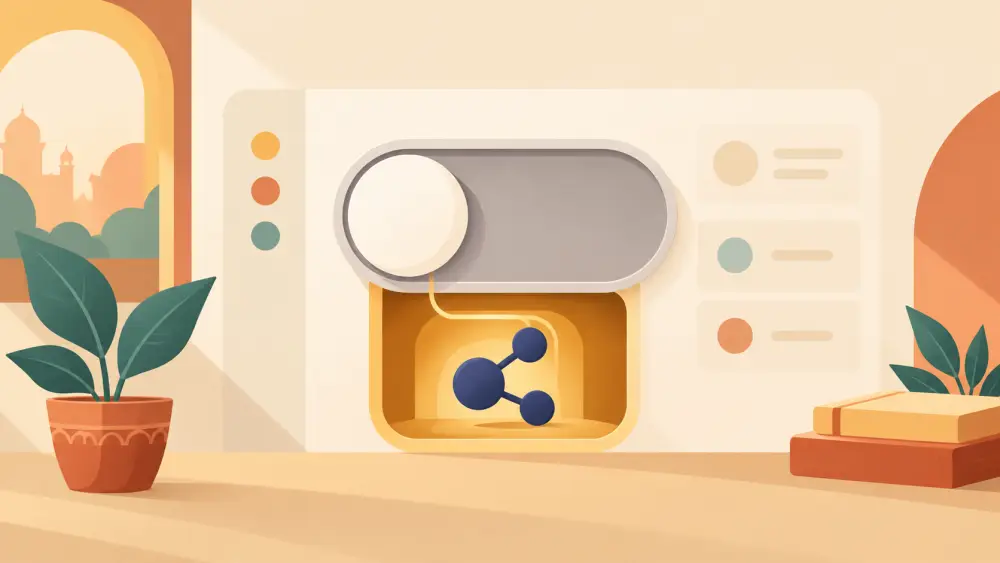
Yes. In your Varchas admin, taking a social icon down and deleting the handle behind it are two separate actions on purpose. You can hide the icon, keep the handle safely stored, and bring it back later with one tick.
Where the switch is
Open Admin, then Settings, then the Storefront tab and find the Social Links card. Every channel in it has a tick box at the left of its name: Instagram, X, YouTube and Email. That tick box is the on/off switch for that channel's icon. Beneath the box, the handle field holds what you typed.
What happens when you untick it
When you untick a channel and press Save Settings:
- The icon disappears from your storefront footer.
- It also disappears from the About page, beside the sign-off.
- The handle you typed stays in its field, still saved.
When you tick the channel again and save, the icon comes back pointing at the same place. You do not have to find your link, paste it again or worry about a typo. The card says as much in its own words: switch a channel off, or leave it blank, and it is left out of both places rather than shown as an icon that goes nowhere.
When this is useful
A few real situations where a short pause makes sense:
- You are rebranding your YouTube channel and the old one should not receive traffic for a few days.
- You have paused posting on a platform and do not want customers landing on a stale page.
- You want to run a focused campaign that sends everyone to Instagram only.
- An account is temporarily locked or under review, and you would rather not link to it in the meantime.
In each case, unticking is faster and safer than deleting, because the work of finding the right link is not lost.
Three ways an icon can be missing
If an icon is not showing, check these in order:
- The tick box is off.
- The field is empty. A ticked channel with no handle is left out too.
- You changed something but did not press Save Settings yet.
The last one is the most common. Changes in the form only take effect once saved.
What the switch cannot do
The switch is manual. It is either on or off whenever you last saved. There is no way to schedule an icon to hide itself or come back on a date, and there are no channels beyond the four listed. So if you want a link to return after a festival, set yourself a reminder to tick it again.
Email follows the same rule. Unticking it hides the mail icon, but it does not remove the support address from your Store details, and the address is still used for invoices and as a fallback for order alerts.
A tidy routine
If you keep your store settings in order, one habit helps: whenever you change your posting plans, spend a minute on this card. Hide what is dormant, keep the handle, and show only the channels where a visitor will find fresh content. For the steps to add a channel in the first place, see adding Instagram and YouTube links to your footer, and for what else lives on the same tab, what you can change in your store settings.