
How do I change the homepage heading and the top announcement bar?
Four text boxes on the Storefront tab control your homepage heading, tagline, subtitle and the strip at the top of the store. Here is how each behaves.
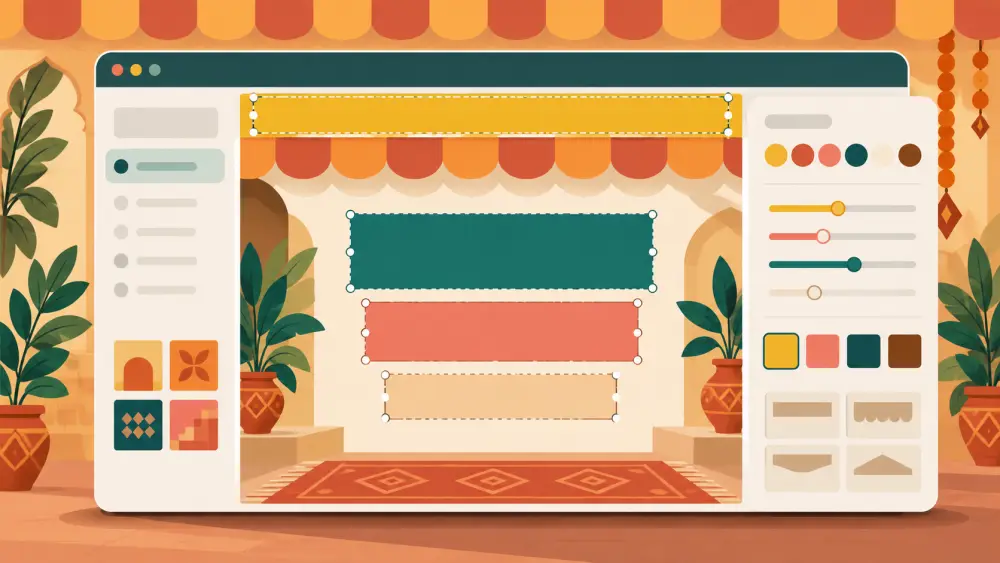
The first thing a visitor sees on your store is the big heading on the homepage and the thin message strip above it. Both are plain text you can change yourself, without waiting on anyone. Go to Admin, then Settings, then the Storefront tab and look for the card called Storefront Copy.
The four fields
Hero title. The large heading at the top of your homepage. Keep it short, since it sits at a large size.
Hero tagline. A smaller line that goes with the title.
Hero subtitle. A longer line or two beneath. This box allows line breaks, so pressing Enter keeps your two-line structure, such as one short sentence on each line.
Announcement bar. The message strip at the top of your pages. This box also allows line breaks.
Press Save Settings when you are done. The change goes out to your storefront straight after saving.
Hiding the announcement bar
An empty announcement hides the bar completely. The label even says so: "empty hides the bar". If you are not running an offer, clearing the box and saving is a perfectly good choice. A bar that says nothing useful is worse than no bar.
The three hero fields behave differently. If you empty one of them, the storefront falls back to the default text rather than showing a blank heading. So you cannot leave the hero title empty by accident and end up with a banner that says nothing.
What to say in the bar
Use it for one clear, current thing. A few examples of the kind of message that works, with no figures promised:
- A shipping offer you have actually set up.
- A coupon code that is live right now.
- A note about a drop that is about to open.
- A delay notice when you are travelling or celebrating a festival.
Whatever you write, make sure it is true for as long as it is on screen. If the bar mentions a coupon, check that the code exists and is active. The coupons post covers how to run them, and creating your first coupon shows the form.
Limits and checks
Each field is capped at 200 characters, and saving a longer value fails with a message saying which one was too long. Write for a phone screen first: a long hero title wraps, and a long announcement is easy to ignore.
After saving, open your store in another tab and refresh. Look at both the desktop and phone widths if you can.
What this does not include
These four fields are text only. Fonts, colours and the overall look come from the storefront theme editor, which is linked at the top of the same tab under Appearance. There is no set of ready-made homepage templates on this screen beyond that link, so if you want a different look, that is the place to go. There is a broader overview in customising your storefront theme and hero.
The photo behind your heading is a separate setting on the same tab, described in the post on changing the hero photo.
A small habit worth building
Treat the announcement bar like a shop window sign. Set a reminder to review it whenever you start or end an offer, so the strip never shows something that stopped being true last week.